




⚡️PLEASE NOTE: THIS REPO IS NO LONGER BEING ACTIVELY UPDATED.
DeadSimple Pixel-Perfect Camera
The DeadSimple pixel-perfect camera is an easy-to-use orthographic camera script for producing crisp, clean pixel art at any resolution in Unity.
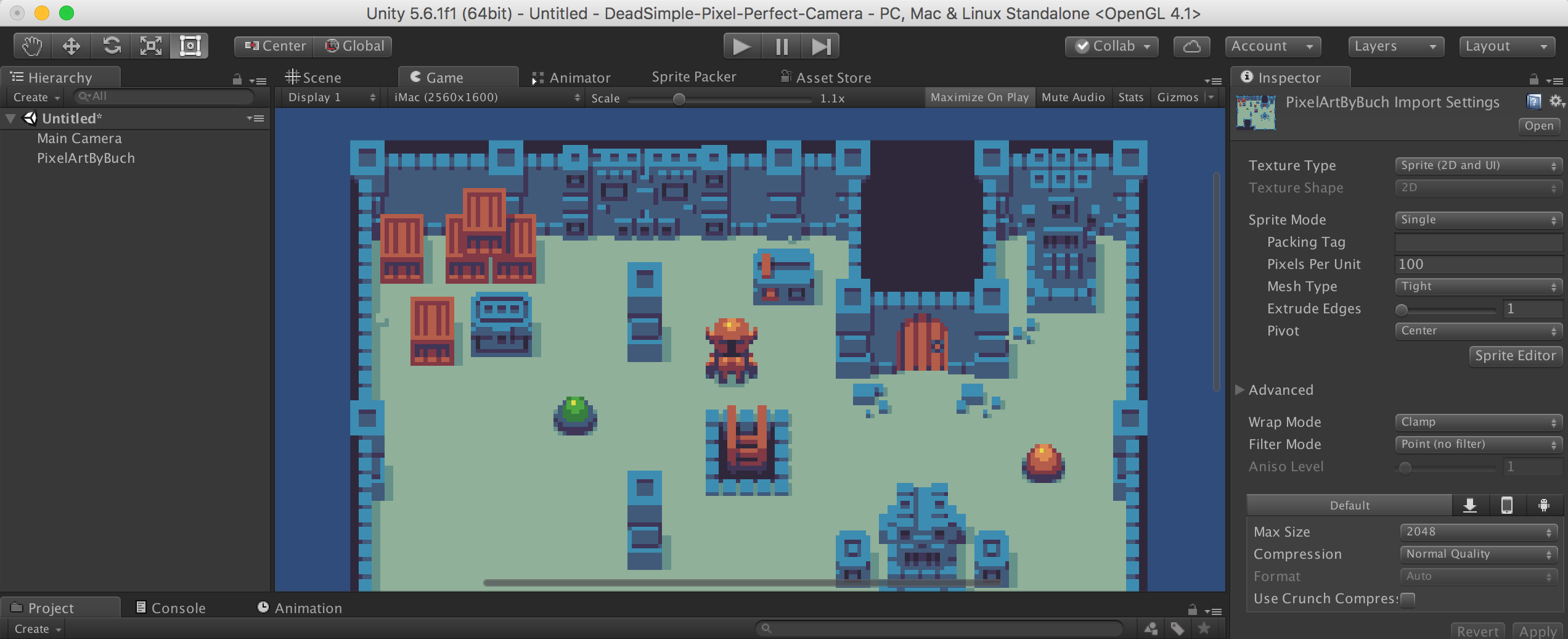
Art by Buch—http://opengameart.org/users/buch or Patreon.com https://www.patreon.com/buch.
What This Script Does (and Doesn’t)
This script will make sure your pixel art looks pretty at any screen size—in other words, every pixel in your original artwork will be displayed at the same size as every other pixel, so you won’t get any weird non-square pixels/blobs (blech.)
What this script won’t do is force your character sprites to only move in single-pixel increments. That is a function more suited to your controller.
Installation
Fork or download this repository to your local machine, then either load up the sample project in Unity (and the Example scene,) or simply drag the DSPixelPerfectCamera.cs file onto the orthographic camera in your current project. Then:
- On the script’s inspector, set Pixels Per Unit to match that of your artwork.
- Set Vertical Units On Screen to whatever you like. This setting allows you to set the camera’s zoom—automatically adapting it for perfect pixel placement. Example: If you set this to 10, you are telling the script that you’d like to fit roughly ten Unity units vertically on the screen. I emphasize roughly because the script will pick a setting closest to what you requested that still allows for pixel perfect placement.
- Enter PLAY mode to apply your settings.
Importing Art
In order to produce perfect pixel art, you need to import your artwork with the proper settings. If you don’t, this camera script won’t be of much use. In your sprite’s inspector, make sure it’s set-up for:
- Texture Type > Sprite (2D & UI)
- Pixels Per Unit > To match your artwork
- Generate Mip Maps > Off
- Filter Mode > Point (no filter)
- Max Size > Set to highest level available
- Format > Truecolor
Other Required Settings
To view your scene in pixel-perfect fashion in the Unity Editor, make sure you have Maximize on Play enabled. Anything that causes your scene to be rendered at other than 100% of the screen settings you’ve selected, will cause your artwork to look wonky in the Editor.
By the same token, you will want to turn off Default is Full Screen in the player settings of your build; otherwise, when you boot your standalone game its display will be stretched-to-fit, ruining the hard work you put into your pixel art.
Questions? Drop Us a Line!
Contact
- Email: [email protected]
- GitHub: cmilr
License
The DSPixelPerfectCamera.cs script is distributed under the MIT license. See LICENSE for more information.
All artwork included in this repository is for example only, and is copyright Michele Bucelli. You can find more of Buch’s great artwork at OpenGameArt.org http://opengameart.org/users/buch, or Patreon.com https://www.patreon.com/buch.